Showing posts with label Tools. Show all posts

Tuesday, November 22, 2011

Virtual Stamps!

It is report card time!

As I am sitting here marking my student's assignments (on paper, which is more and more rare), I began thinking of how I give feedback to students using stickers and stamps. From here, the idea of a virtual stamp came to mind.

Most of my marking this year is done online using Google Docs. When I do mark students work done on paper, I always stamp or put a sticker on their work. I realized that I have yet to do such a thing when I mark my students work that is done online.

So, I quickly put together some images (using Google Drawing) to put on my students' work.

Check them out:


I especially love the idea that I can make my own in French!


        Happy Marking!


Saturday, November 12, 2011

Where I want to be in one less click!

Wow!

So maybe I might be a little behind the times, but I just discovered Google Apps!

I have heard of their Apps before and after a quick glance, I became aware that I was already using some of them. However, last night was the real discovery : life is much easier with Google Apps!

Basically, I chose all the Apps that correspond to my daily online usage and determined how using the app brings me to where I want to be in less time!

Screen Shot of Google Apps!
In addition to my daily usage apps, I found some really neat apps to use with my students:

Diigo Web
Type Scout
Evernote Web
Picasa
Prezi
Sketchpad
Typing Test - Key Hero
QR Code Creator
Weebly
Google Docs
For Language schools there is Google Translate
For teachers, the Webpage Screenshot app is awesome!
And many more...


Another great thing is that we already use Google Chrome as our Internet browser at school ( I would highly recommend you install Google Chrome on your school computers, especially if you also work with Google Docs). By adding educative apps to the Chrome home page, it makes it that much easier to share app links with our students. In addition, each app has its own image. Therefore, it is much  easier to guide our younger students to where we want them to go.

Happy Apping!

Sunday, November 06, 2011

Mind Maps

As a visual learner, I see the great importance in using mind mapping tools with my students when planning a project, when doing revision for a test and even when they need to write everything down that is in their head.

Before using mind maps with my students, I noticed that many times their ideas in their writing were disconnected, they would often go off topic or they would get stuck because they didn't know what to write about next.

With mind maps, students can link their ideas, insert images and even insert videos (depending on the tool they use). They can use colors and they can make their plan come alive. Students also tend to spend a lot more time on their "plan" when using mind mapping tool. Then, when it comes to writing, they are very prepared and feel more confident throughout the writing process.

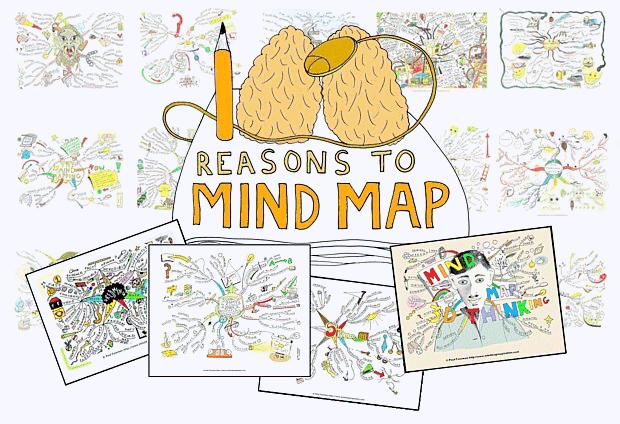
Here is a link to 100 reasons to use mind maps :
http://www.mindmapinspiration.com/100-reasons-to-mind-map-paul-foreman/


Mind Map Ideas mindmapinspiration.com


Another great thing about mind maps, is it good for all ages! 


Here is a list of 5 FREE Mind Mapping tools available online:
https://bubbl.us/ - Brainstorming made simple
http://mind42.com/ - Collaborative mind mapping in your browser
http://www.mindmeister.com/ - The leading online mind mapping tool (MindMeister goes mobile: iPhone. iPad. Android.)
http://www.mindomo.com/ - Mind mapping made easy
http://www.wisemapping.com/c/home.htm - Visual thinking evolution


Here is a great tutorial on how to use these 5 mind mapping tools:
http://h30411.www3.hp.com/posts/1018306?mcid=Twitter


Happy mapping!

My Favorite Ted Talk